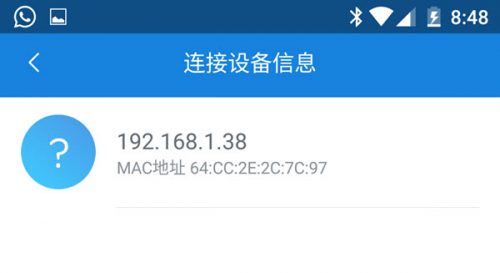
Use the repeater management screen to review devices currently connected through the Xiaomi Wifi Repeater. The client list can show each connected device's MAC address and local IP address.
Open the Client List

 [step]
1. Open the management screen for the Xiaomi Wifi Repeater.
2. Select the repeater if multiple network devices are available.
3. Open the connected-client option. In the interface shown above, this is the third option.
4. Review the devices currently connected to the repeater network.
5. Use the displayed MAC and IP addresses to distinguish between client devices.
[/step]
Client Information
[reference] Title: Connected Client Text: A device currently using the Wi-Fi network provided by the repeater. Title: MAC Address Text: The network address shown for the connected client and useful for distinguishing one device from another. Title: IP Address Text: The local network address currently shown for that client. Title: Available Controls Text: The client view described here is primarily for checking connected devices. Blocking and speed-limiting controls are not available from this view. [/reference] [note] The exact screen layout, menu names, and management app can vary by Xiaomi repeater model, router setup, and app version. [/note]Identify a Device
If several clients are listed, compare the MAC and IP information with the network details available on devices you recognize. This can help separate known clients from entries that are less familiar.
[tip] When the list is difficult to identify, check it while only the devices you expect to use the repeater are actively connected. This can make individual entries easier to recognize. [/tip]What the Client List Does Not Provide
- It does not provide a speed-limiting control for individual clients in the client view described here.
- It does not provide a direct block control for an individual client from this view.
- It shows clients connected through the repeater, so a device using the main router directly may not appear in the repeater-specific list.
Use the client list as a quick network reference. It is intended to show which devices are using the repeater connection rather than provide full router-level client management.[faq] Q: What information can I see for a connected client? A: The client list can show the device's MAC address and its local IP address. Q: Can I block a device from this client list? A: The client view described here does not provide a device-blocking function. Q: Can I limit the connection speed of one client? A: No speed-limiting function is available from the client view described here. Q: Why might a device be missing from the repeater list? A: The list is for devices connected through the repeater. A device connected directly to the main router instead may not appear there. Q: Can the client-list screen look different on another Xiaomi repeater? A: Yes. Menu names and screen layouts may vary depending on the repeater model, network setup, and management app version. [/faq]